|
Checklist Area |
What It Verifies |
Why It Matters |
|
Products |
At least one product is published |
You can't sell without inventory |
|
Payment providers |
A payment gateway is activated |
Orders can't complete without payment processing |
|
Shipping settings |
Shipping zones and rates are configured |
Physical products need delivery options |
|
Legal policies |
Privacy, refund, and terms pages are added |
Required for compliance and customer trust |
|
Custom domain |
Your own domain is connected (optional but recommended) |
Builds brand credibility and trust |
How KwikAds helped Shop Unrush boost ROAS by 37% in 3 months
How KwikAds helped Shop Unrush boost ROAS by 37% in 3 months
How KwikAds helped Shop Unrush boost ROAS by 37% in 3 months
How KwikAds helped Shop Unrush boost ROAS by 37% in 3 months
Shopify
How to Use the Shopify Launch Check Tool in 2026
 08 Jun 2026
 08 Min Read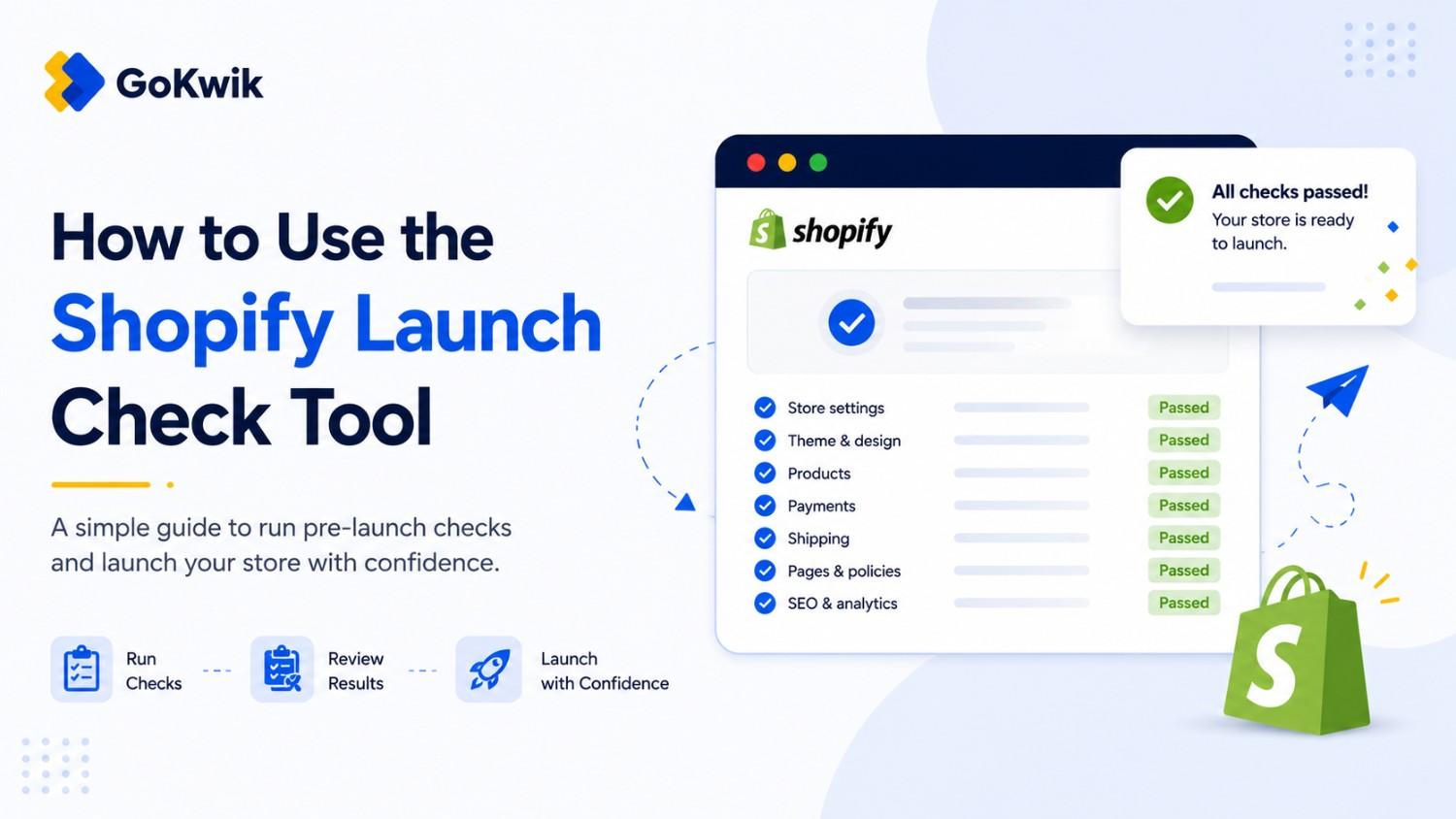
Vardhan leads product and growth initiatives at GoKwik, driving D2C e-commerce innovations, conversion optimization, and scalable growth programs for products. An ISB alumnus based in Bengaluru, he brings expertise from Unacademy, Ola, and Mahindra in building high-impact product strategies.
Read this blog on your favourite platform
You've built your store, added products, and configured settings - but how do you know if you've actually covered everything before going live? Missing a critical step like payment setup or shipping zones can cost you sales from day one. Shopify's Launch Check is a built - in verification tool that reviews your store setup and flags what's incomplete. This guide walks you through how to access it, what it checks, and how to address each item before you launch.
What Shopify Launch Check Actually Does
Launch Check is a pre - launch verification system built into your Shopify admin. It scans your store configuration across products, payments, shipping, policies, and domain settings, then shows you exactly what needs attention before you can start taking orders.
Unlike a generic checklist you might find online, Launch Check is dynamic - it only shows issues relevant to your actual store setup. If you've already connected a domain, that item won't appear. If you haven't set up shipping, it flags it immediately.
This tool is most useful for merchants in their trial period or those who've just selected a paid plan but haven't launched yet. Once your store is live and taking orders, the tool becomes less relevant since you've already cleared the core requirements.
How to Access Shopify Launch Check
Source: Shopify
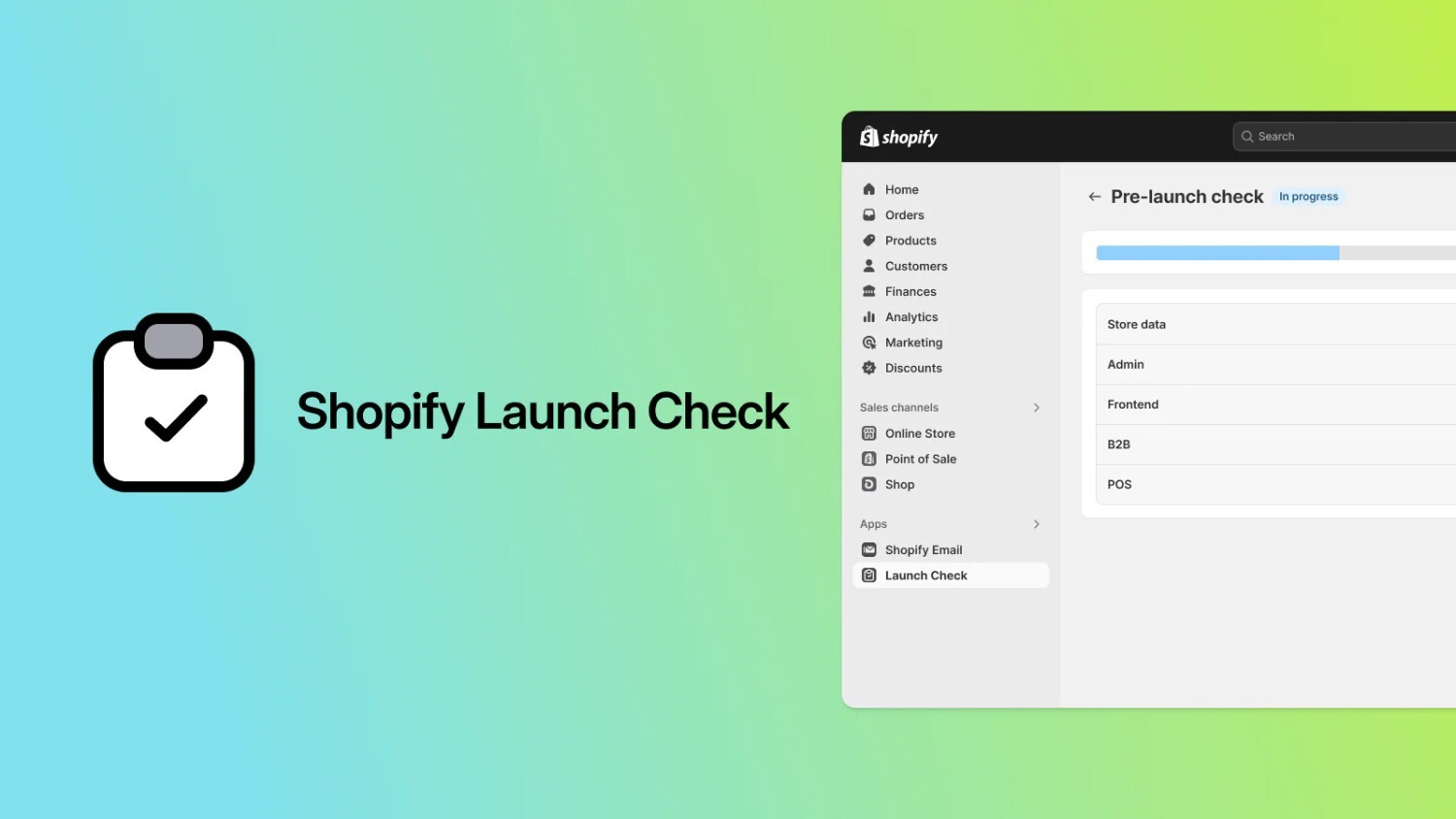
To access Launch Check, go to your Shopify admin and navigate to Apps > Launch Check. If this is your first time using it, you may need to install it from the Shopify App Store at apps.shopify.com/launch - check. Once inside, click Run launch check or New launch check to begin. A full store scan takes approximately two minutes and can run in the background - you don't need to stay on the page.
What Launch Check Reviews
Launch Check evaluates your store across five core areas. Each one must be complete for your store to function properly at launch.
Each task in the scan receives one of four assessments: Ready (baseline requirements are met), Not ready (issues found that need fixing), Confirm set up (configuration is technically correct but needs you to verify it matches your business), or Check manually (can't be verified automatically - you review it yourself and update the status). Tasks marked "Confirm set up" or "Check manually" won't resolve on their own; you need to manually mark them as Ready after completing your review.
Step-by-Step: Completing Each Launch Check Item
Work through each flagged item in the order that makes sense for your workflow. Here's how to resolve the most common ones.
Add and Publish Products
If Launch Check flags missing products, go to Products in your Shopify admin. Click Add product, fill in the title, description, price, and inventory details, then set the product status to Active and assign it to your Online Store sales channel.
You need at least one published product for Launch Check to mark this complete. If you're still building your catalog, publish a single item to move forward, then add the rest before you start driving traffic.
Set Up Payment Providers
Go to Settings > Payments. Shopify Payments is the default option for most regions and offers the fastest setup. If you're using a third - party gateway like PayPal or Razorpay, activate it here and complete the required account linking.
Launch Check won't clear this item until at least one payment method is fully active. Test mode doesn't count - your gateway must be live.
Configure Shipping Zones and Rates
Navigate to Settings > Shipping and delivery. Create at least one shipping zone (such as your home country), then add a shipping rate. You can set a flat rate, offer free shipping, or use carrier - calculated rates if you're on a plan that supports it.
If you're selling digital products only, you can skip shipping setup, but you'll need to mark your products as digital or disable shipping requirements in the product settings.
Add Legal Policies
Go to Settings > Policies. Shopify auto - generates templates for Privacy Policy, Refund Policy, Terms of Service, and Shipping Policy. Review each one, customize it to match your business practices, then save.
These pages are legally required in most regions and also build customer trust. Don't skip this step even if Launch Check allows it.
Connect a Custom Domain
Go to Settings > Domains, then click Buy new domain or Connect existing domain. If you bought your domain elsewhere, follow the DNS setup instructions Shopify provides. If you're buying through Shopify, the connection happens automatically.
You can launch without a custom domain using your myshopify.com URL, but it looks unprofessional and weakens brand trust. Connect your domain before you start paid marketing.
What Happens After You Complete Launch Check
After making changes to your store based on the results, you can re - run the check to verify your improvements. From your Shopify admin, go to Apps > Launch Check, open the previous check, and click More actions > Re - run. You can choose to carry over any notes or manual status updates from the original check into the new one.
Then, Go to Online Store > Preferences, scroll to Password protection, and uncheck the box to make your store publicly accessible.
After going live, monitor your first few orders closely to confirm checkout, payment processing, shipping calculations, and email notifications are all working as expected.
Common Mistakes to Avoid
Sharing Launch Check with untrusted collaborators: If you give staff members or agency partners access to the Launch Check app, be aware that it may display sensitive store information, including Shopify Payments configuration details. Only grant access to people you trust with that level of visibility.
Leaving password protection on after launch: Even if Launch Check is complete, your store won't be visible to customers if password protection is still enabled. Double - check this setting before announcing your launch.
Skipping policy customization: Using Shopify's default policy templates without editing them can leave you legally exposed, especially around refunds and data handling. Customize every policy to reflect your actual practices.
Not testing checkout: Launch Check verifies setup, but it doesn't test the full customer journey. Place a test order using a real payment method to confirm everything works end - to - end.
Ignoring mobile experience: Launch Check doesn't evaluate design or user experience. Preview your store on mobile before launch - most of your traffic will come from phones.
💡 Tip from Reddit Community
"Indian Shopify sellers often run into GST confusion before launch, especially when shipping across states or setting up payment gateways. Before going live, review GST registration, product tax slabs, invoices, and gateway onboarding requirements with a CA."
FAQ
Closing
Complete every Launch Check item, place a test order, then disable password protection and go live - your first customer is waiting.

AUTHOR
Vardhan Jain
Director of Product Program @ GoKwik