|
Region |
Using Shopify Payments |
Not Using Shopify Payments |
|
US, UK, Ireland |
$200,000 USD/year |
$60,000 USD/year |
|
Canada, New Zealand |
$300,000 USD/year |
$60,000 USD/year |
|
Australia |
$400,000 USD/year |
$60,000 USD/year |
|
Singapore |
$600,000 USD/year |
$60,000 USD/year |
How KwikAds helped Shop Unrush boost ROAS by 37% in 3 months
How KwikAds helped Shop Unrush boost ROAS by 37% in 3 months
How KwikAds helped Shop Unrush boost ROAS by 37% in 3 months
How KwikAds helped Shop Unrush boost ROAS by 37% in 3 months
Shopify
How to Upgrade or Downgrade Your Shopify Plan
 11 Jun 2026
 09 Min Read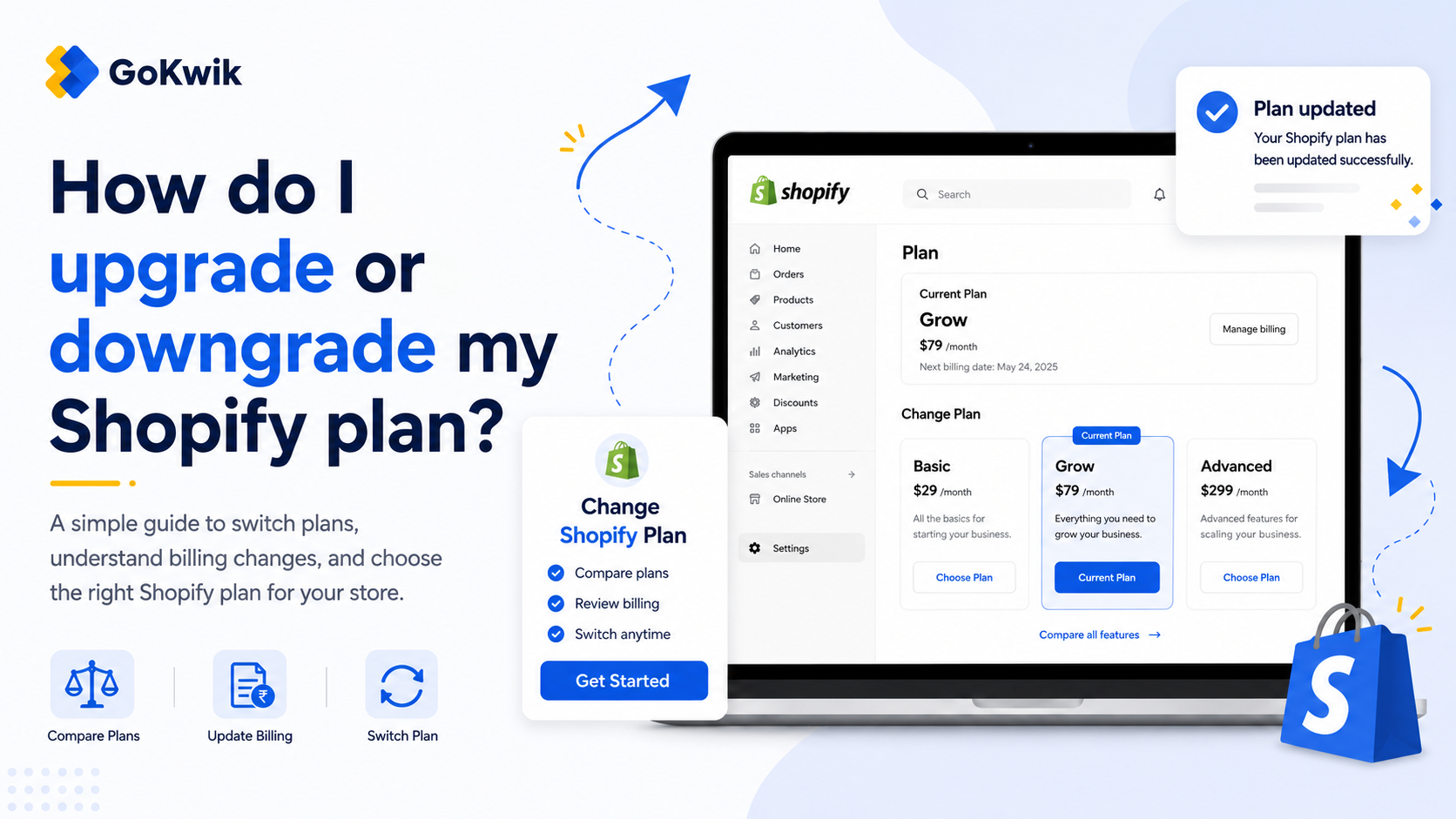
Suhag spearheads D2C growth strategies at GoKwik, focusing on e-commerce optimisation, conversion funnels, and sales enablement. Based in Bengaluru and an MICA alumnus, he excels in crafting GTM playbooks and marketing campaigns tailored for D2C brands.
Read this blog on your favourite platform
You need to change your Shopify plan when your sales volume grows, you need access to lower transaction fees, or you want to reduce costs during slower periods. This guide walks you through the exact steps to upgrade or downgrade your Shopify plan, explains how billing works when you make changes, and helps you decide when it's actually worth upgrading based on your transaction volume.
When to Upgrade Your Shopify Plan
Higher-tier Shopify plans come with lower credit card processing fees. Once your sales reach a certain threshold, the savings on transaction fees can offset the higher monthly subscription cost.
The break-even point depends on whether you use Shopify Payments and your store's location. Here's when upgrading typically saves you money:
Grow Plan Break-Even Points
For India, Grow starts saving money over Basic at roughly ₹49–50 lakh/year in online sales, assuming payments go through a third-party gateway.
Advanced Plan Break-Even Points
These estimates assume the difference comes purely from credit card processing rate savings. Your actual break-even point may vary based on your payment mix and other factors.
In India, based on Shopify’s annual prices and third-party transaction fees, upgrading from Grow to Advanced starts saving money at roughly ₹5.1 crore/year in online sales, assuming those sales are processed through third-party payment providers.
Beyond cost savings, you might upgrade for features like advanced reporting, additional staff accounts, or enhanced retail store capabilities on the Advanced plan.
|
Region |
Using Shopify Payments |
Not Using Shopify Payments |
|
US, Australia |
$1,320,000 USD/year |
$528,000 USD/year |
|
Canada, UK, Ireland |
$880,000 USD/year |
$528,000 USD/year |
|
Singapore, New Zealand |
$2,640,000 USD/year |
$528,000 USD/year |
How to Upgrade Your Shopify Plan
Upgrading your plan takes effect immediately. Shopify prorates the cost, charging you only for the remaining days in your current billing cycle at the new plan rate.
Steps to Upgrade
- From your Shopify admin, go to Settings > Plan.
- In the Plan details section, review your current plan and available upgrade options.
- Click the upgrade button for the plan you want, such as Choose Grow or Choose Advanced.
- Review the new plan features, pricing, and the prorated charge that will be applied immediately.
- Confirm your payment method is up to date.
- Click Subscribe or Confirm to complete the upgrade.
Your new plan activates immediately. You'll receive a bill for the prorated amount, which covers the difference between your old and new plan for the remainder of your billing cycle.
How Plan Proration Works for Upgrades
When you upgrade mid-cycle, Shopify calculates what you've already paid on your current plan and credits that amount toward your new plan. You only pay the difference.
For example, if you're 15 days into a 30-day Basic plan cycle and upgrade to Grow, you'll be charged for 15 days of the Grow plan minus the 15 days you already paid for on the Basic plan.
How to Downgrade Your Shopify Plan
Downgrading works differently than upgrading. When you select a lower-tier plan, the change doesn't take effect until your current billing cycle ends. You keep all features of your current plan until that date.
Steps to Downgrade
- From your Shopify admin, go to Settings > Plan.
- Click Change plan or Deactivate store.
- Select the lower-tier plan you want to switch to.
- Review when the downgrade will take effect (at the end of your current billing cycle).
- Click Confirm or Select plan to schedule the downgrade.
You won't lose any features until your current billing cycle ends. At that point, the new plan takes effect and you'll be charged the lower monthly rate.
Switching Between Annual and Monthly Billing
You can change your billing cycle independently of your plan tier. Paying annually typically saves you money compared to monthly billing.
Change from Monthly to Annual Billing
- From your Shopify admin, go to Settings > Plan.
- In the Plan details section, click Pay yearly and save.
- Review your payment method and confirm the annual subscription details.
- Click Subscribe to switch to annual billing.
Change from Annual to Monthly Billing
You cannot change from annual to monthly billing directly in your admin. If you want to switch back to monthly payments, you need to contact Shopify Support. Be aware that switching to monthly billing means you lose any discounts or benefits included with your annual plan commitment.
What Happens to Charges When You Change Plans
Understanding how different charges are handled during plan changes helps you avoid unexpected bills:
- Monthly subscription fees: Prorated when upgrading. Downgrade applies at cycle end.
- App charges: Continue as normal. Apps bill independently of your Shopify plan.
- Transaction fees: Change immediately when you upgrade. Lower fees start with your next transaction.
- Shipping label charges: Not affected by plan changes.
All pending charges on your account are processed according to your regular billing schedule, regardless of when you change your plan.
Billing Thresholds and Plan Changes
If your store has high transaction volumes or recurring app charges, you might hit billing thresholds that trigger bills before your regular billing date. This happens when third-party transaction fees, recurring app charges, and other fees exceed your account's threshold amount.
Changing your plan doesn't reset your billing threshold. If you're close to a threshold bill, upgrading or downgrading won't prevent it from being issued.
You can view your current billing threshold in the Current billing cycle section on your Settings > Billing page. It only displays if you have transaction fees, app charges, or other fees accumulating.
Special Considerations for Shopify Plus Organizations
If you're on a Shopify Plus plan with multiple stores in your organization, plan management works differently. Shopify Plus contracts typically include up to 10 stores at no additional cost: one main store and nine expansion stores.
Expansion stores must meet specific eligibility requirements and have their billing currency set to USD or INR to be added to your Plus agreement. If you need to change your expansion store's billing currency, go to Settings > Billing, click Billing currency in the Payment details section, and select USD or INR.
Managing Shopify POS Subscriptions
If you use Shopify POS, you can upgrade to POS Pro or downgrade to the default plan separately from your main Shopify plan.
Steps to Change POS Subscription
- From your Shopify admin, go to Sales channels > Point of Sale.
- Click Locations > Manage subscriptions.
- In the Review POS subscriptions for each location section, select a subscription option for each location:
- To upgrade to POS Pro, select Upgrade to POS Pro and choose monthly or yearly billing
- To downgrade and change billing cycle, click Change plan and select your billing preference
- To cancel POS Pro and downgrade with the same billing cycle, click Cancel POS Pro
- Click Approve subscription or Confirm to complete the change.
If you're on Shopify Plus with 20 or more locations, you need to edit POS subscriptions from the locations table. Select the checkboxes for locations you want to edit, then click Manage subscriptions. You can update up to 250 locations at a time.
What Happens When You Deactivate or Pause Your Store
If you're considering downgrading to save costs, you might also think about pausing or deactivating your store temporarily. Here's what you need to know:
When you cancel your plan, all apps are automatically uninstalled and any pending charges are processed immediately. These include outstanding app usage charges, transaction fees, and shipping label charges.
If you reactivate your store within the same billing cycle (before it ends), you won't be charged again until your next regular billing date. For annual plans, if you reactivate during the period you've prepaid for, your original annual cycle resumes without additional charges until renewal.
💡 Tip from Shopify Community
“If you don’t use Shopify Payments, upgrading from Basic to Grow can start to make financial sense once your store processes around $5,000 per month in sales. That’s because third-party transaction fees drop from 2% to 1%, saving about 1% of your sales volume. Grow also gives you up to 5 user accounts, which can help if more team members need admin access.”
FAQ
Next Step
Review your store's annual sales volume and compare it to the break-even points in this guide, then go to Settings > Plan to select the tier that maximizes your profit after transaction fees.

AUTHOR
Suhag Vamja
Head of Product Marketing @ GoKwik