|
Setting Changed |
What Gets Updated |
What Stays the Same |
|
Legal business name |
Future invoices and documents |
Existing orders and past documents |
|
Business address |
Tax calculations on new orders, shipping origin |
Completed orders and existing tax settings |
|
Store currency |
New product listings display format |
Existing product prices (numerical values stay the same) |
|
Default weight unit |
New products you add |
Existing product weights already entered |
How KwikAds helped Shop Unrush boost ROAS by 37% in 3 months
How KwikAds helped Shop Unrush boost ROAS by 37% in 3 months
How KwikAds helped Shop Unrush boost ROAS by 37% in 3 months
How KwikAds helped Shop Unrush boost ROAS by 37% in 3 months
Shopify
How to Add Business Settings to Your Shopify Store 2026
 08 Jun 2026
 08 Min Read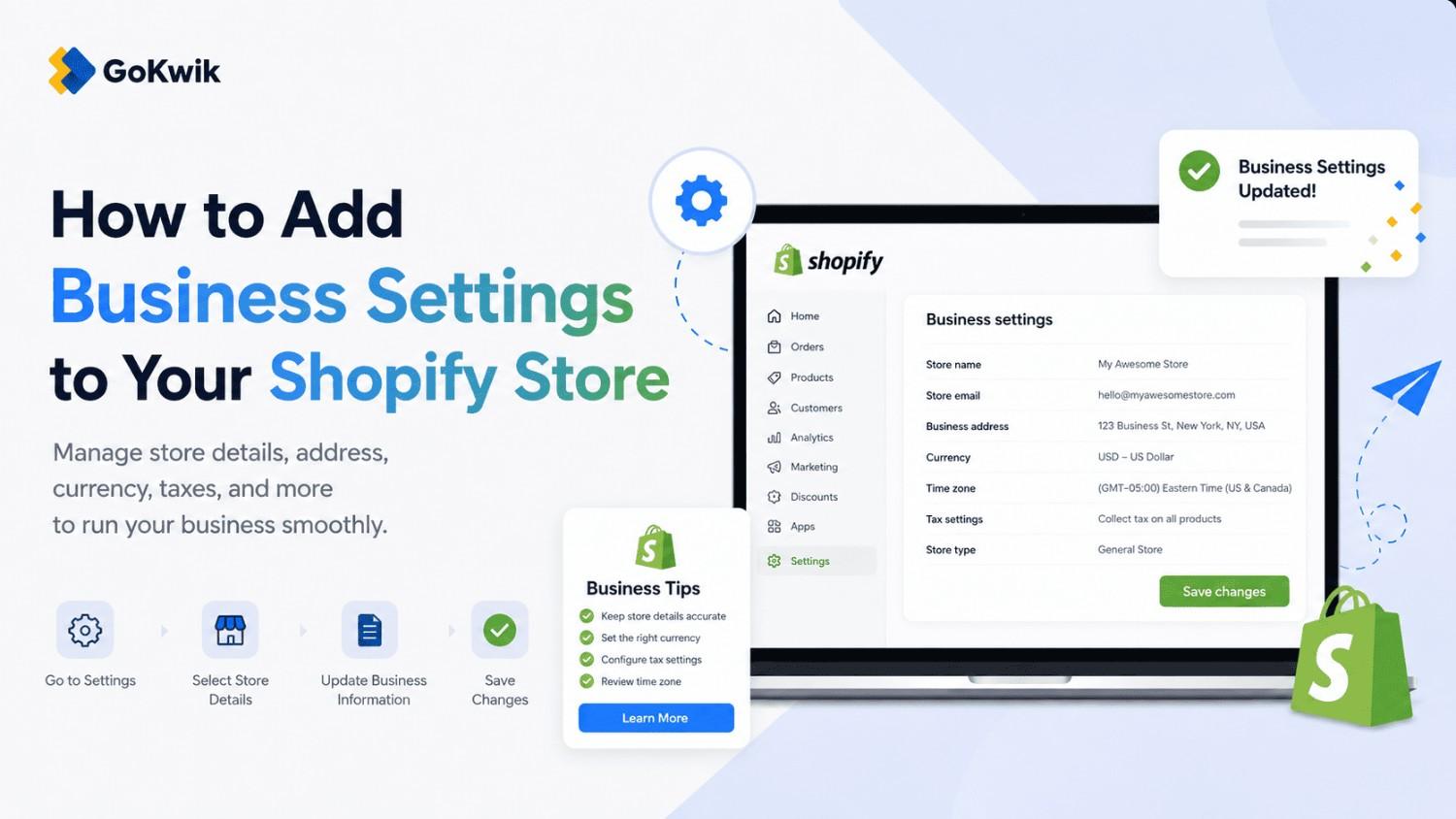
Atul leads marketing at GoKwik, championing D2C brand building, growth strategies, scalable GTM for e-commerce, and data-driven customer acquisition. A former Amazon leader and IIFT MBA alumnus based in Bengaluru, he brings 15+ years scaling business across e-commerce, and fintech.
Read this blog on your favourite platform
Your store's business settings form the foundation for everything from tax calculations to shipping labels and legal compliance. Getting these details right from the start prevents operational headaches later.
This guide walks you through configuring your store's legal name, business address, default currency, and weight units - the four critical settings that affect how your store operates across orders, taxes, and customer communications.
What Business Settings Control
Business settings in Shopify control operational and legal details that affect multiple parts of your store:
- Your legal business name appears on invoices, packing slips, and tax documents
- Your business address determines tax calculations and shipping origin
- Default currency sets the baseline for product pricing across your store
- Default weight units standardize how you list product weights for shipping
You configure all of these from the Settings section of your Shopify admin.
Before You Start
Have the following information ready:
- Your registered legal business name (as it appears on tax documents)
- Complete business address including postal code
- The primary currency you want to use for store listings
- Your preferred weight measurement system (imperial or metric)
If you sell internationally, note that you can set up additional currencies and markets later. These initial settings establish your store's defaults.
Your legal business name and address also appear on your Shopify bill. Having the correct legal entity details here may allow you to claim your Shopify subscription as a deductible business expense - worth confirming with your accountant.
Set Your Store Name and Legal Business Name
Your store name is what customers see, while your legal business name appears on official documents.
- From your Shopify admin, go to Settings > General.
- In the Store details section, find the Store name field.
- Enter the name you want customers to see across your online store.
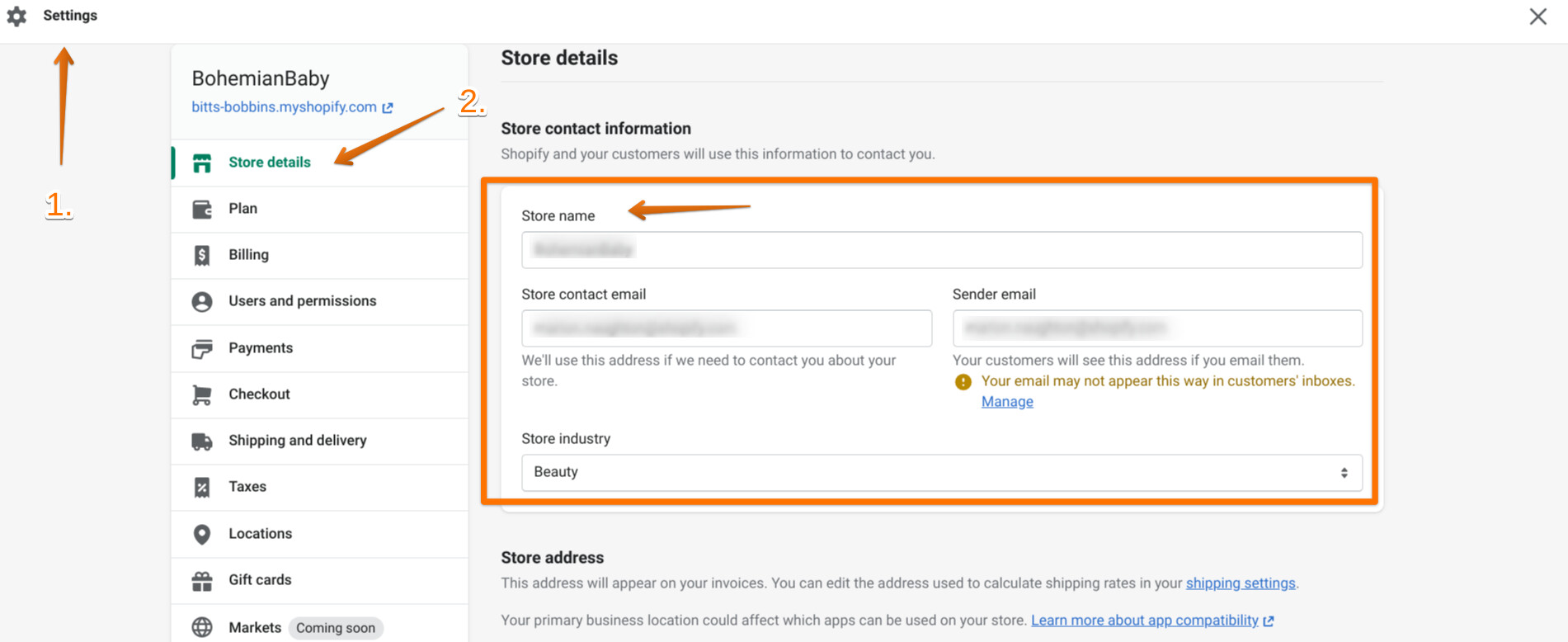
- Scroll down to the Store currency section to find the Legal business name field.
- Enter your business's registered legal name exactly as it appears on government documents.
- Click Save in the top right corner.
Your legal business name appears on invoices, packing slips, and any tax-related documents generated by Shopify. Keep this name accurate for compliance purposes.
Note: If your store uses Shopify Payments, updating your legal business name in General settings is not sufficient. You must also contact Shopify Support to update the business name on your Shopify Payments account separately, or the two records will be out of sync.
Set Your Business Address
Your business address affects tax calculations, shipping rates, and legal requirements.
- From your Shopify admin, go to Settings > General.
- Scroll to the Store address section.
- Enter your complete business address in the following fields:
- Country/region
- Address line 1
- Address line 2 (optional)
- City
- Postal/ZIP code
- Province or state (if applicable)
- Verify each field is accurate, especially your postal code and country.
- Click Save.
This address becomes your default shipping origin and affects how Shopify calculates taxes for your orders. If you operate from multiple locations, you can add additional locations later in your Locations settings.
Select a Store Currency
Your store currency sets the default for all product prices you list.
- From your Shopify admin, go to Settings > General.
- In the Store currency section, click the Currency dropdown menu.
- Select your primary currency from the list.
- Review the legal business name in this same section to ensure it's correct.
- Click Save.
Once you set your store currency, all product prices you enter will use this currency by default. If you want to sell in multiple currencies later, you can enable additional markets and currency options, but this selection remains your store's base currency.
The number of markets you can create depends on your subscription plan. Your base currency setting does not prevent you from selling internationally - it simply establishes your default pricing reference.
Standards and formats"
Standardizing your weight unit ensures consistent shipping calculations.
- From your Shopify admin, go to Settings > General.
- Scroll to the Store defaults section.
- Find the Default weight unit dropdown.
- Select either:
- lb (pounds) for imperial measurements
- kg (kilograms) for metric measurements
- Click Save.
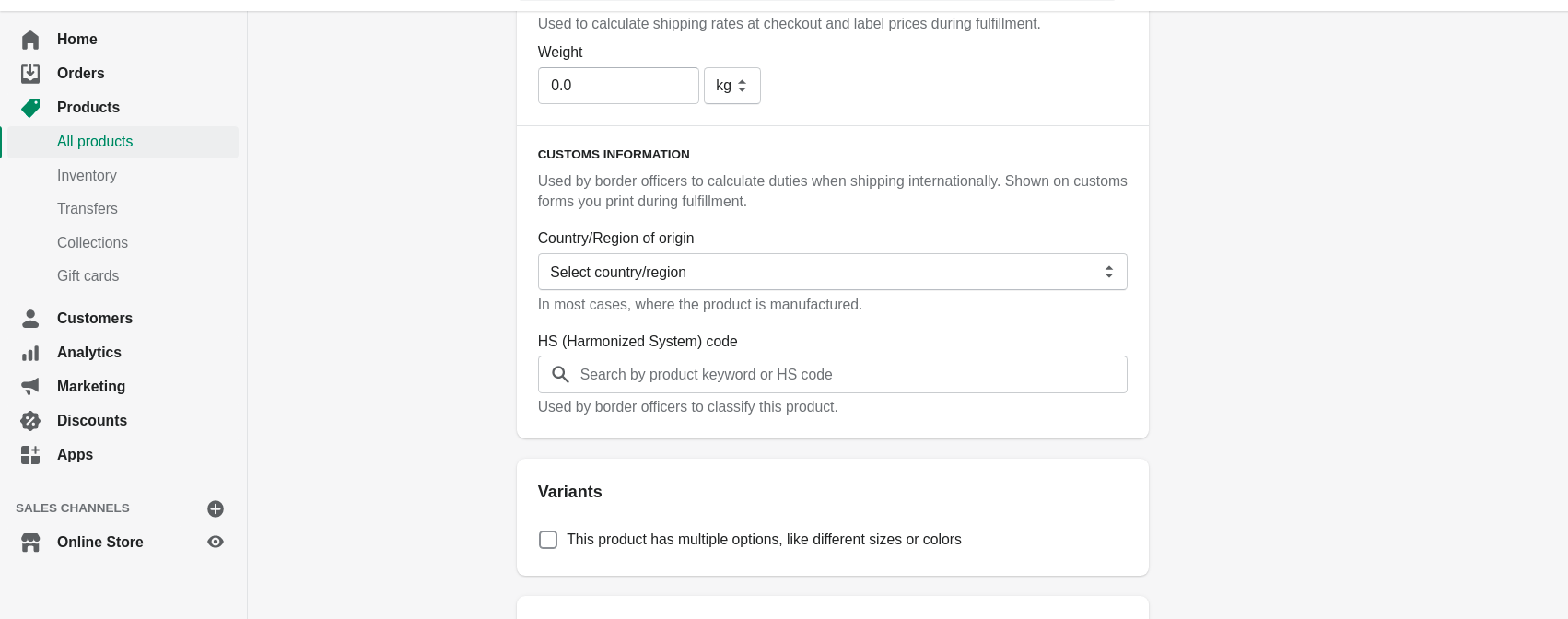
This setting applies to all product weights you enter going forward. Choose the system that matches how your suppliers provide product specifications and how your shipping carriers calculate rates.
Verify Your Settings Are Applied
After configuring your business settings, verify they appear correctly throughout your store.
- Go to Products in your Shopify admin.
- Click any product to view its details.
- Check that the currency symbol matches your selected store currency.
- Scroll to the Shipping section and confirm the weight unit matches your selection.
Your business settings now apply across your entire store. These details will automatically populate in the appropriate places when you add products, process orders, and generate invoices.
Additional Business Configuration
Once you've set your core business settings, configure related settings that depend on these foundational details:
Email settings: Set up your sender email and authentication so customer communications come from your business domain. Go to Settings > Notifications to configure your sender email.
Tax settings: Your business address affects tax calculations. Review your tax settings to ensure Shopify collects the correct taxes based on your location and customer locations.
Domain setup: Connect a custom domain to match your business name and build brand recognition. You can buy a domain from Shopify or connect an existing one.
Customer accounts: Decide whether customers need accounts to check out. Go to Settings > Customer accounts to configure this.
Payment providers: Set up how you'll accept payments. Your currency selection affects which payment providers you can use.
What Happens After You Change Business Settings
Changing business settings affects different parts of your store:
Plan business setting changes carefully. Your store currency cannot be changed easily once you've started selling, and changing your business address mid-operation can affect tax reporting.
Common Mistakes to Avoid
Using your personal address instead of business address: If you operate a registered business, use your business address for legal compliance and professionalism.
Confusing store name with legal business name: Your store name is customer-facing and can be creative. Your legal business name must match government records exactly.
Choosing the wrong currency: Select the currency you want to use for accounting and reporting. You can sell to international customers in other currencies later, but your base currency should match your primary business operations.
Inconsistent weight units: If you change your weight unit after adding products, you must manually update weights on existing products. Choose your unit before adding inventory.
Forgetting to save: Shopify requires you to click Save after making changes in Settings. Your updates won't apply until you save them.
💡Tip from Reddit Conversations:
Make sure your legal business name is exactly right before you start processing orders. I had to contact support to change mine after realizing invoices were going out with the wrong entity name, and it was a headache for accounting.
Frequently asked questions
Can I change my store currency after I start selling?
Changing your base store currency after you've added products and made sales is technically possible but not recommended. The currency selection affects accounting, reporting, and existing price values. If you need to sell in multiple currencies, set up additional markets instead of changing your base currency. Contact Shopify Support if you must change your base currency, as they can help you understand the implications.
What's the difference between store name and legal business name?
Your store name is what customers see on your online store and in marketing. Your legal business name is the registered name of your business entity and appears on invoices, tax documents, and official records. Many businesses use a simpler or branded store name while maintaining their full legal entity name in business settings.
Do I need to use my home address if I run my business from home?
Yes, use your actual business operating address even if it's your home. This address determines tax calculations and serves as your shipping origin. You can set up additional locations later if you expand to multiple warehouses or fulfillment centers.
Will my business address be visible to customers?
Your business address appears in specific places like invoices, packing slips, and your store policies where required by law. It doesn't automatically display on your storefront. You control what address information appears on customer-facing pages through your theme settings and policy pages.
Can I use different weight units for different products?
Your default weight unit setting standardizes how weight fields display in your admin, but you can manually enter weights in any unit when editing individual products. Shopify converts between units automatically for shipping calculations. However, maintaining one consistent unit reduces confusion and entry errors.

AUTHOR
Atul Bansal
Head of Marketing